Ableton2 min read
The Fastest Way to Start Running Multitracks in Ableton
A simple, repeatable workflow that gets you from “I’m overwhelmed” to a clean, reliable set—fast.
Keegan Ryan
If you’re trying to run multitracks or backing tracks in Ableton, the biggest mistake is assuming you need to build everything from scratch.
Most of the frustration people feel with Ableton playback isn’t because Ableton is “too complex.” It’s because they’re trying to invent a system while also trying to build a set, route click and guide, warp audio, and stay organized all at once.
Here’s the fastest way to get started without the chaos.
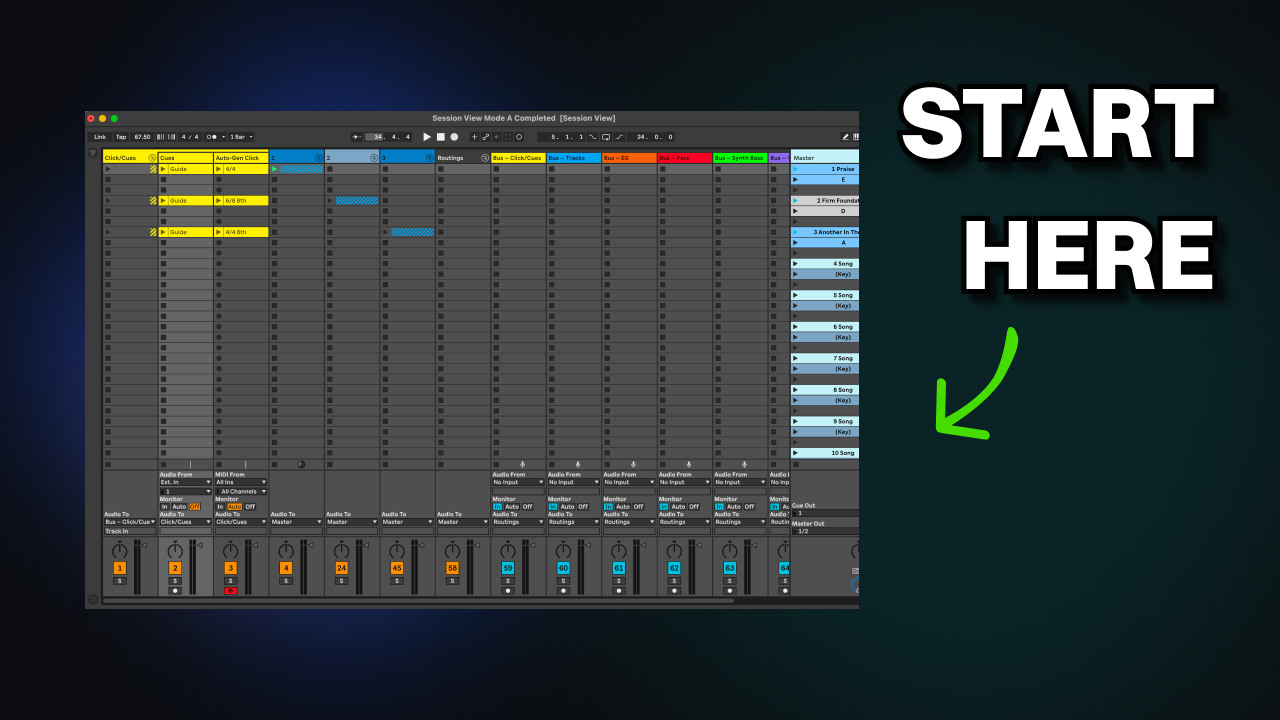
1) Start with a template, not a blank project
If you’re serious about running tracks consistently, starting from a blank Ableton session is a time tax you’ll pay every single week.
A good template gives you:
- A clean session layout that makes sense immediately
- Consistent track naming and routing structure
- A repeatable build process (so you don’t reinvent the wheel every time)
The goal isn’t “the perfect template.” The goal is a reliable starting point that removes decisions and prevents setup mistakes.
2) Prepare your multitracks and setlist before you open Ableton
This sounds obvious, but it’s where most teams lose time.
Before you drag anything into Ableton, have two things ready:
A setlist that’s finalized
- Song order
- The keys you’re actually playing in (not just the original recording keys)
A clean multitracks folder
- Each song clearly labeled
- Original BPM and key noted somewhere (filename, folder notes, or metadata)
- Stems organized so you’re not hunting through downloads mid-build
If your files and setlist are messy, your Ableton session will become messy too.
3) Build each song with a system (Session View workflow)
Once you have a template and your files ready, the actual build becomes straightforward.
A simple system looks like this:
Step 1: Set the song basics
- Song title
- BPM
- Time signature
Step 2: Load click first
Click is the anchor. Everything else hangs off it. If click isn’t right, the rest of your set won’t feel right.
Step 3: Drop in stems
Bring in the stems for the song, keeping the layout consistent from song to song.
Step 4: Warp and transpose
After each song is loaded:
- Warp it so everything is stable and aligned
- Transpose to your set key if needed
- Move on to the next song
Doing this one song at a time prevents the “I built the whole set and now nothing works” problem.
The point: remove decisions, reduce mistakes, move faster
Ableton can be an incredibly clean playback tool, but only if your workflow is predictable.
When you start with structure, you get:
- Faster prep
- Fewer routing and timing mistakes
- Easier handoff to other people on your team
- A set that stays consistent week to week
And if you want to go even faster long-term, this is exactly the kind of process TracksBuilder is designed to support, especially once you’re building real setlists regularly.
Get the free Ableton multitracks template:
Get the free Ableton multitracks template
Start with a clean, repeatable session structure and build faster every week.