Release4 min read
TracksBuilder 1.5: Your whole set. One workspace.
The most exciting update to TracksBuilder yet brings your setlist, song editing, tracks, production cues and the Ableton build into a single window.
Keegan Ryan
TracksBuilder has always been built on one promise: keep Ableton, skip the rebuild. There is a plan for Sunday, a folder of multitracks, and an Ableton set that has to exist before rehearsal. TracksBuilder takes the rebuilding out of that job.
TracksBuilder 1.5 is the most exciting update yet, because it is the release where that promise becomes the whole product.
Your whole set. One workspace.
What TracksBuilder was always meant to be
1.5 is a revamped, refined TracksBuilder, with everything in one view. It feels like a professional playback app, and it builds straight into Ableton. That is the idea TracksBuilder started with: a real professional workflow that creates Ableton sessions.
It is made for both ends of the room. The power user gets depth: detailed build settings, full support for their own template, and control over every cue. Someone newer to Ableton gets a clear path from a setlist to a set that is ready to run, without needing to know how that set is put together.
Nothing else for building an Ableton set goes this deep in features, stays this dependable and customizable, from the in-app build settings to template support, and is still this straightforward to use. That is what this update is about.
One window, start to finish
Until now, preparing a set in TracksBuilder meant moving between windows: one for the setlist, one for stems, another for editing a song, and another to build. Each did its part well. Together they asked you to keep the whole set in your head.
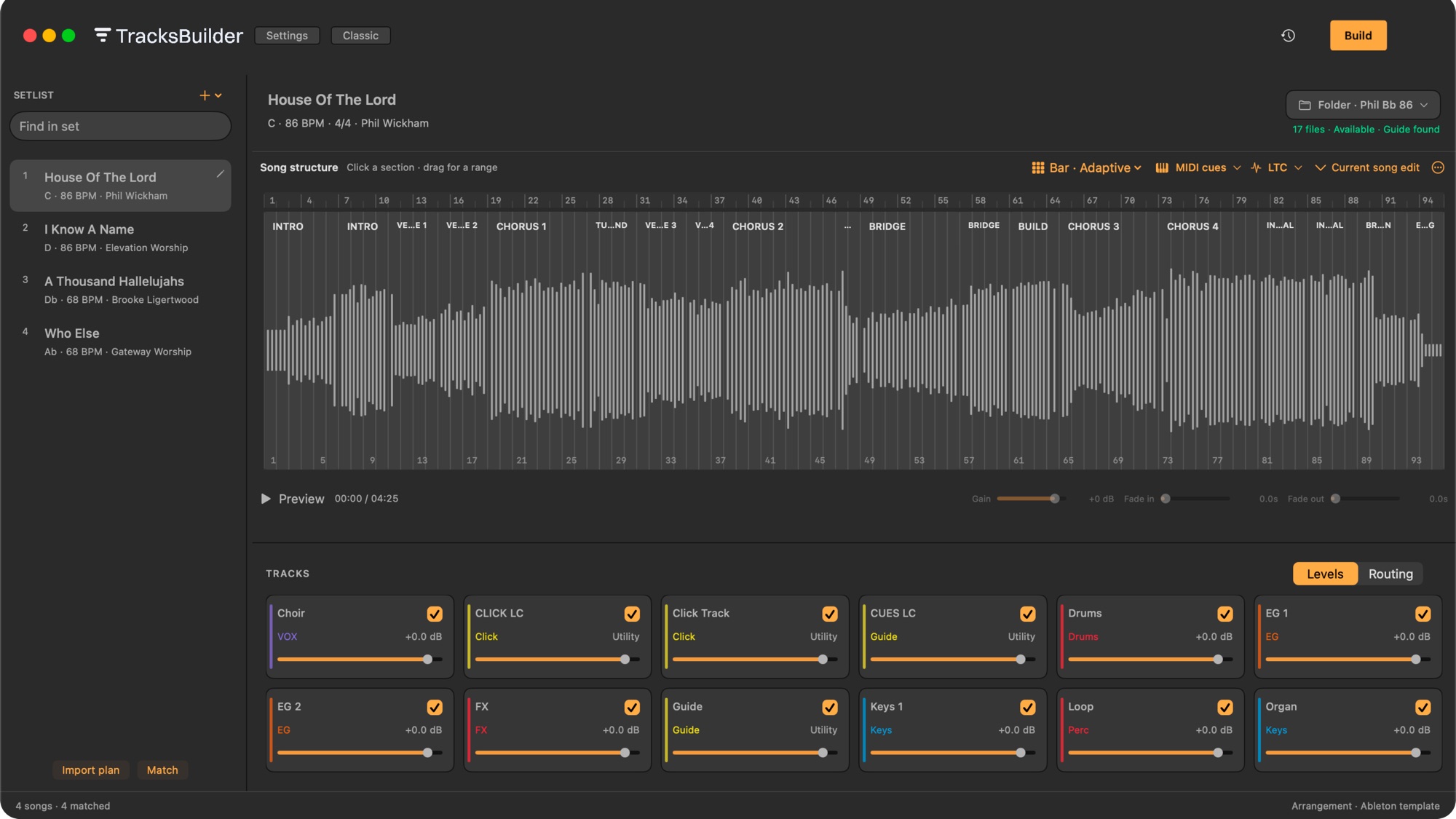
The new Workspace puts it all in front of you. Your setlist sits on the left. The song you select opens in the middle, with its structure laid out over the waveform. Its tracks sit underneath, ready to balance and route. Build is one button in the corner.
You pick a song and everything about it is there. You pick the next one and the window follows. Nothing to open, nothing to line up.
If you like the way TracksBuilder has always worked, Classic is still here. Switch between Workspace and Classic in Settings whenever you want.
From Planning Center to a setlist
Most sets start as a plan. In 1.5, the Planning Center import has been rebuilt to match: choose a service type, see your upcoming plans, preview the songs in each one, and import the plan you want. Add it to the set you already have, or replace the setlist with it.
From there, TracksBuilder matches each song to the multitracks on your computer. The setlist shows what was found, so anything that still needs a folder is easy to spot before you build.
Edit the song where you see it

The song editor is where 1.5 feels most different. The arrangement is drawn across the waveform, section by section, against a bar ruler. Click a section to select it, or drag to select a range.
Then shape the song the way your team plays it. Split a section. Duplicate a chorus. Rename a part. Take one out. Set the gain and the fades. The edit travels with the song, so the set you build matches the arrangement you planned.
Production cues, built in
A set is more than audio. 1.5 moves the production details into the same editor, so they are part of the song from the start and not something you add in Ableton afterwards.
- MIDI cues. Place cues throughout a song and TracksBuilder builds them into your Ableton set as MIDI clips, in time with the music.
- LTC timecode. Use the timecode you already have, or have TracksBuilder generate SMPTE timecode for the songs that need it.
- Tempo control. Choose tempo automation, or dedicated tempo-control clips, depending on how your rig follows tempo.
If lighting, lyrics or video run from your set, they can now be planned in the same place as the music.
Pro Builder, the look of 1.5

A professional workflow should look the part. Pro Builder is the new visual identity of TracksBuilder 1.5: charcoal greys and warm orange, inspired by Ableton, so the app you prepare in feels at home next to the app you play from.
It is one of three looks. Dark is the TracksBuilder you know, and Light is there for bright rooms and daytime work. TracksBuilder can also follow your Mac and switch between Dark and Light on its own.
A little more, everywhere
The headline is the Workspace, but 1.5 touches nearly every part of the app.
- Saved projects. Save a set, reopen it later, and recover work you didn’t save.
- Presets. Reuse song and build settings instead of setting them again each week.
- Clearer build progress. See each phase as your set is prepared, written and saved.
- Better templates. Improved routing, song colours and track order when you build into your own template, across Live 10.1, 11 and 12.
- MIDI Click per song. Choose MIDI Click for individual songs, with clearer warnings when a click source needs attention.
- Post-build feedback. Report how a set worked in Ableton, and attach the template it was built with if something needs a look.
The full list is in the 1.5 release notes.
Keep Ableton. Skip the rebuild.
That has been the promise behind TracksBuilder from the beginning. You shouldn’t have to leave Ableton to get a set that is ready to run, and you shouldn’t have to rebuild that set by hand every week.
1.5 is the most complete version of that promise so far, and the most exciting update TracksBuilder has had. It is ready for your next set.
TracksBuilder 1.5 runs on macOS 13 or later, with Ableton Live 10.1, 11 and 12.
Build your next set in 1.5.
Already using TracksBuilder? Open it and choose TracksBuilder → Check for Updates…, or download 1.5 directly. New here? Download it and start a free trial.